Add your IEC, LUT and declaration to export invoices
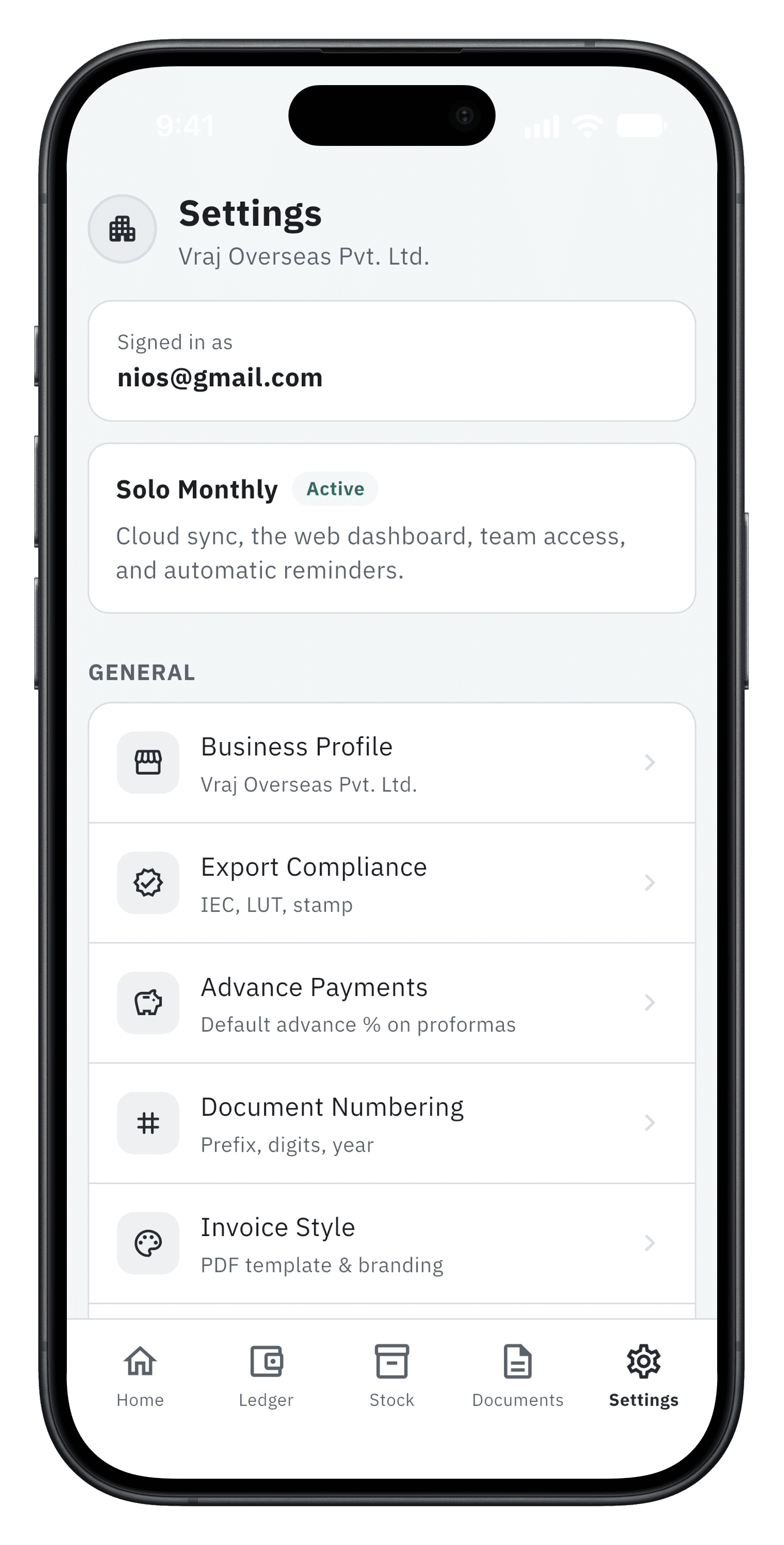
Open Settings → Export Compliance and enter your IEC, your LUT ARN with its validity date, an optional declaration and your company stamp. Bilexor prints them on every proforma and commercial invoice. Every field is optional — fill in only what applies, but the LUT ARN and its date go together.
Step by step
Go to Settings → Export Compliance.
Enter your IEC (Importer-Exporter Code) — 10 characters.
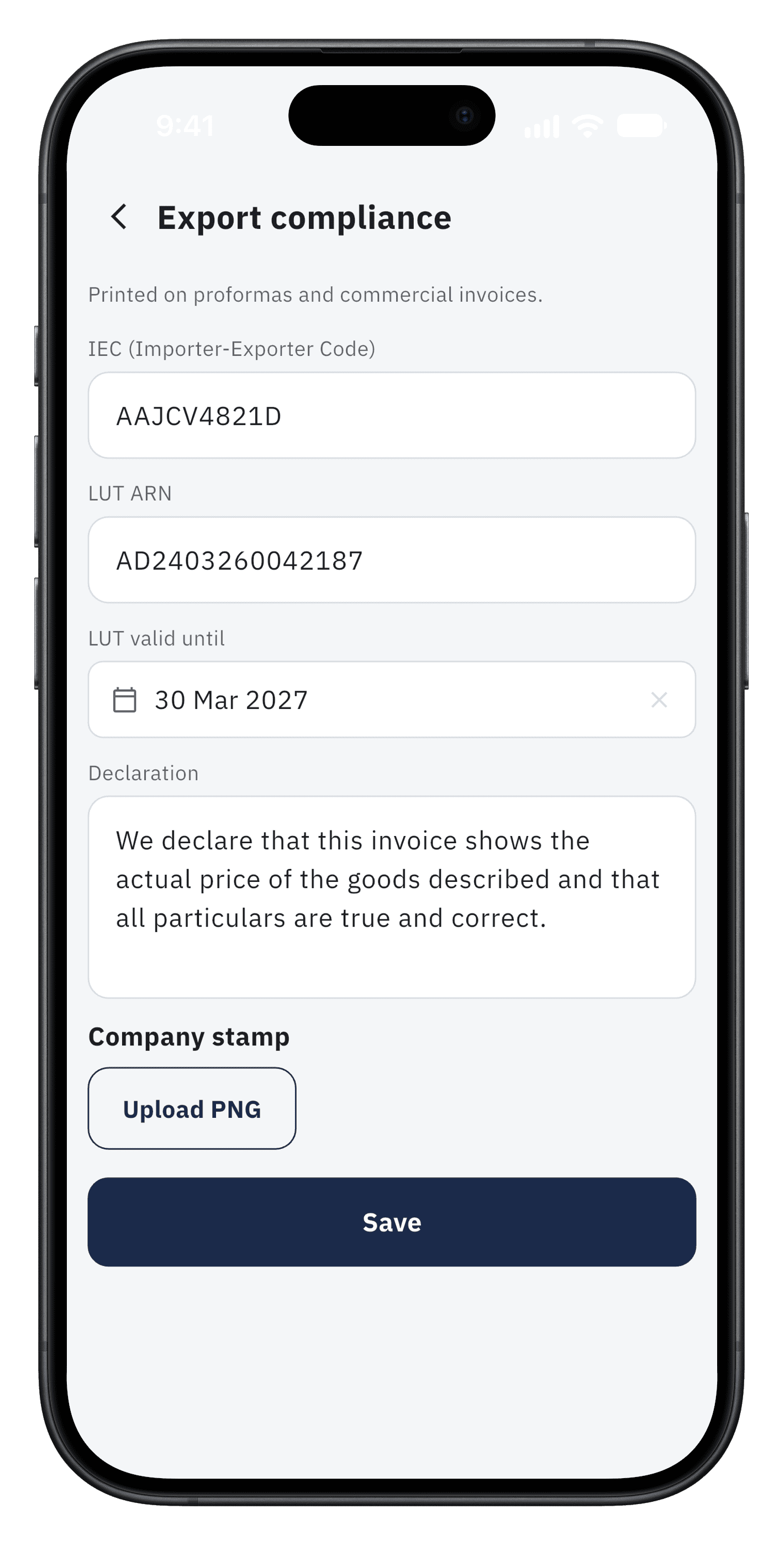
If you export under a Letter of Undertaking, enter the LUT ARN and set LUT valid until. Fill in both or neither.
Optionally write a Declaration. Leave it empty to use the standard wording on the Trade style.
Tap Upload PNG under Company stamp — a PNG under 400 KB, ideally with a transparent background — then tap Save.
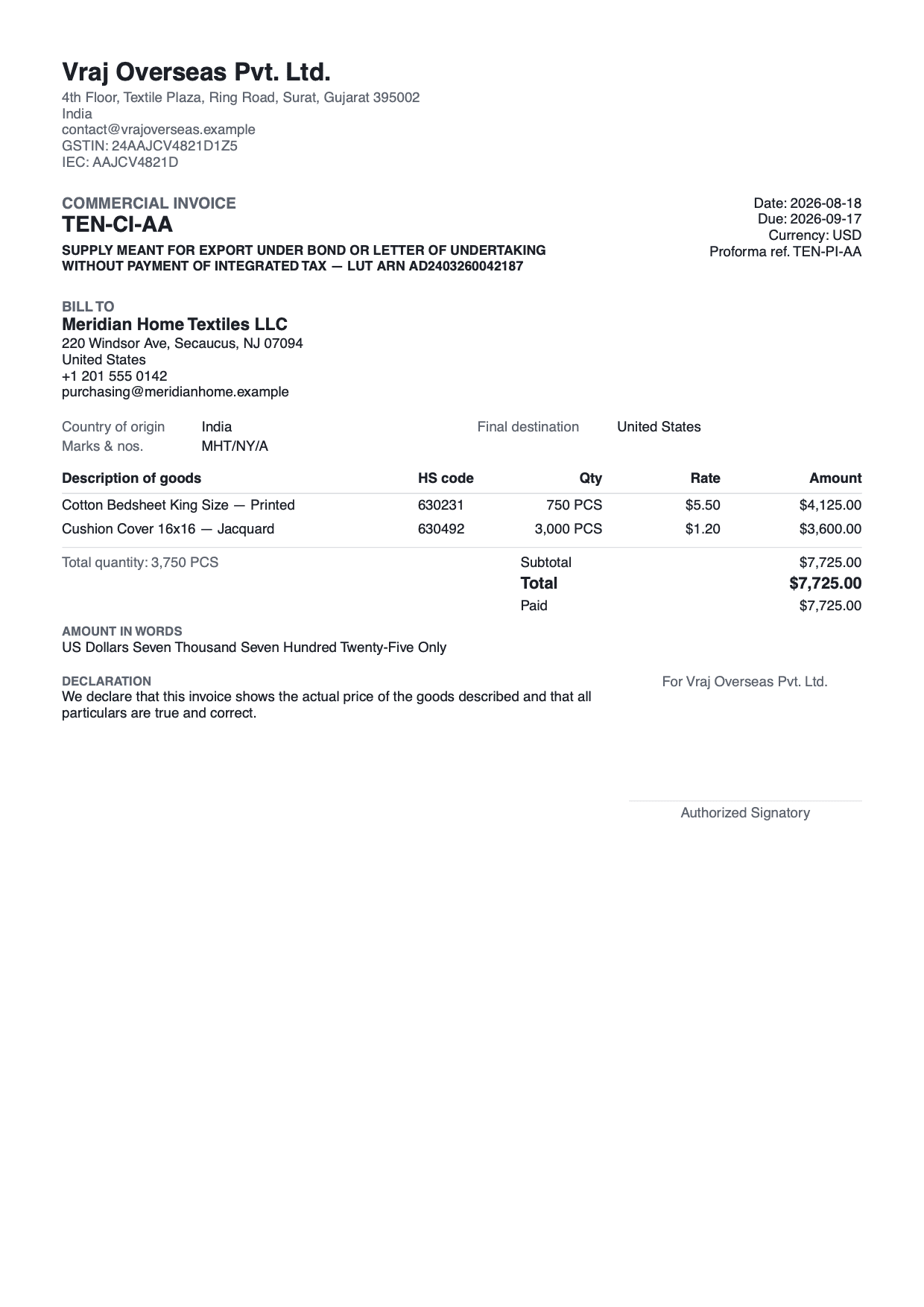
When your tax ID is a GSTIN, the invoice has no tax and the buyer is outside India, the PDF adds “SUPPLY MEANT FOR EXPORT UNDER BOND OR LETTER OF UNDERTAKING WITHOUT PAYMENT OF INTEGRATED TAX”, followed by your LUT ARN. Don't repeat that sentence in the declaration.
Frequently asked questions
Do I need an LUT ARN to save my IEC?
No. Every field is optional. If you pay IGST on exports instead of using an LUT, leave the LUT fields empty — the invoice then prints the “on payment of integrated tax” line when tax is charged.
Is the declaration required?
No. If you leave it empty, the Trade invoice style prints the standard declaration; Classic and Compact print none.