Get started with Bilexor on phone and web
Install Bilexor from Google Play or the App Store, sign up with email, Google or Apple, and add your business details. The app opens on Home, with Contacts, Stock, Documents and Settings along the bottom. On any paid plan you can also sign in at app.bilexor.com with the same account.
Step by step
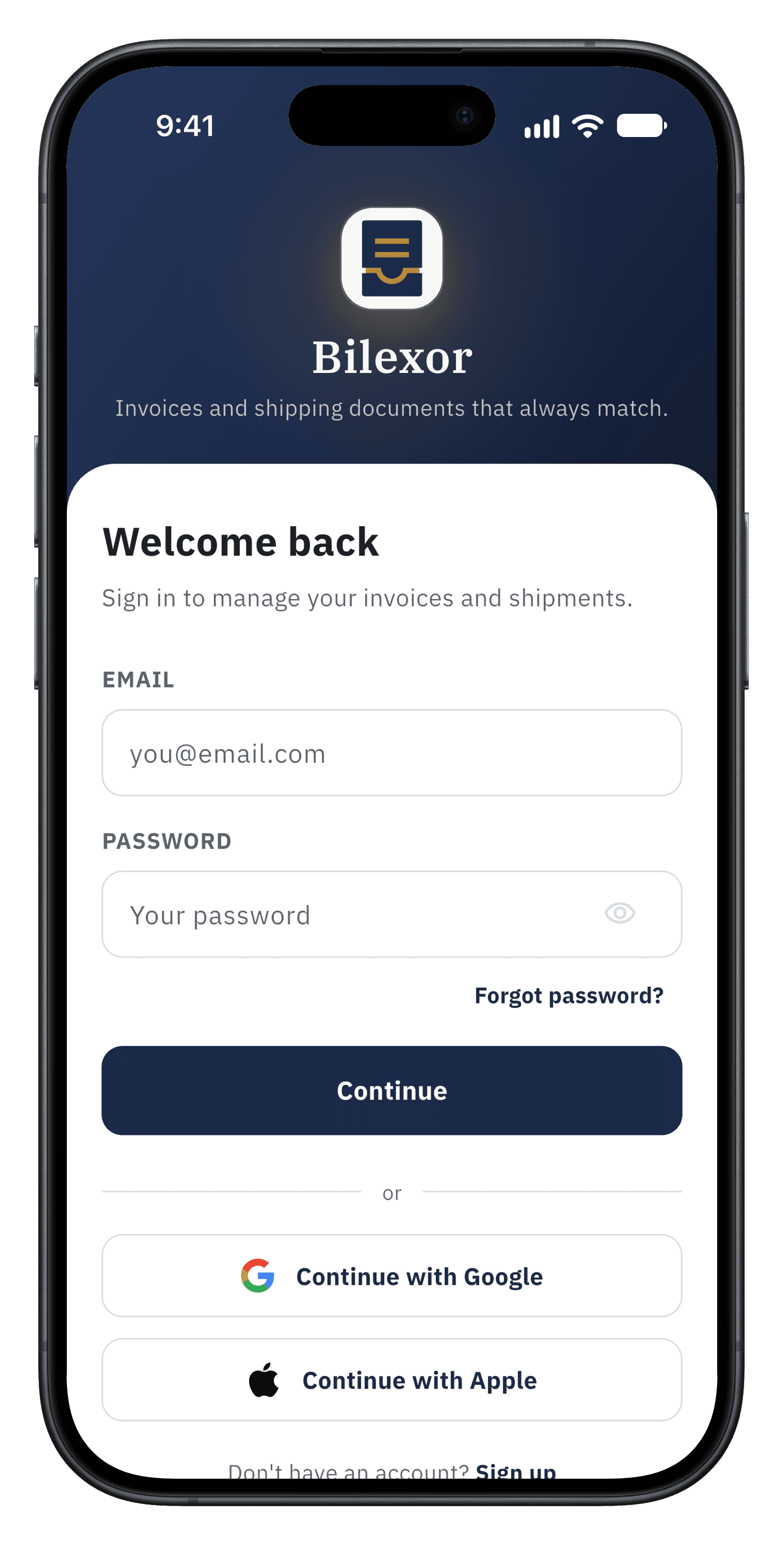
Install Bilexor from Google Play or the App Store, open it and sign up with your email, Google or Apple account.
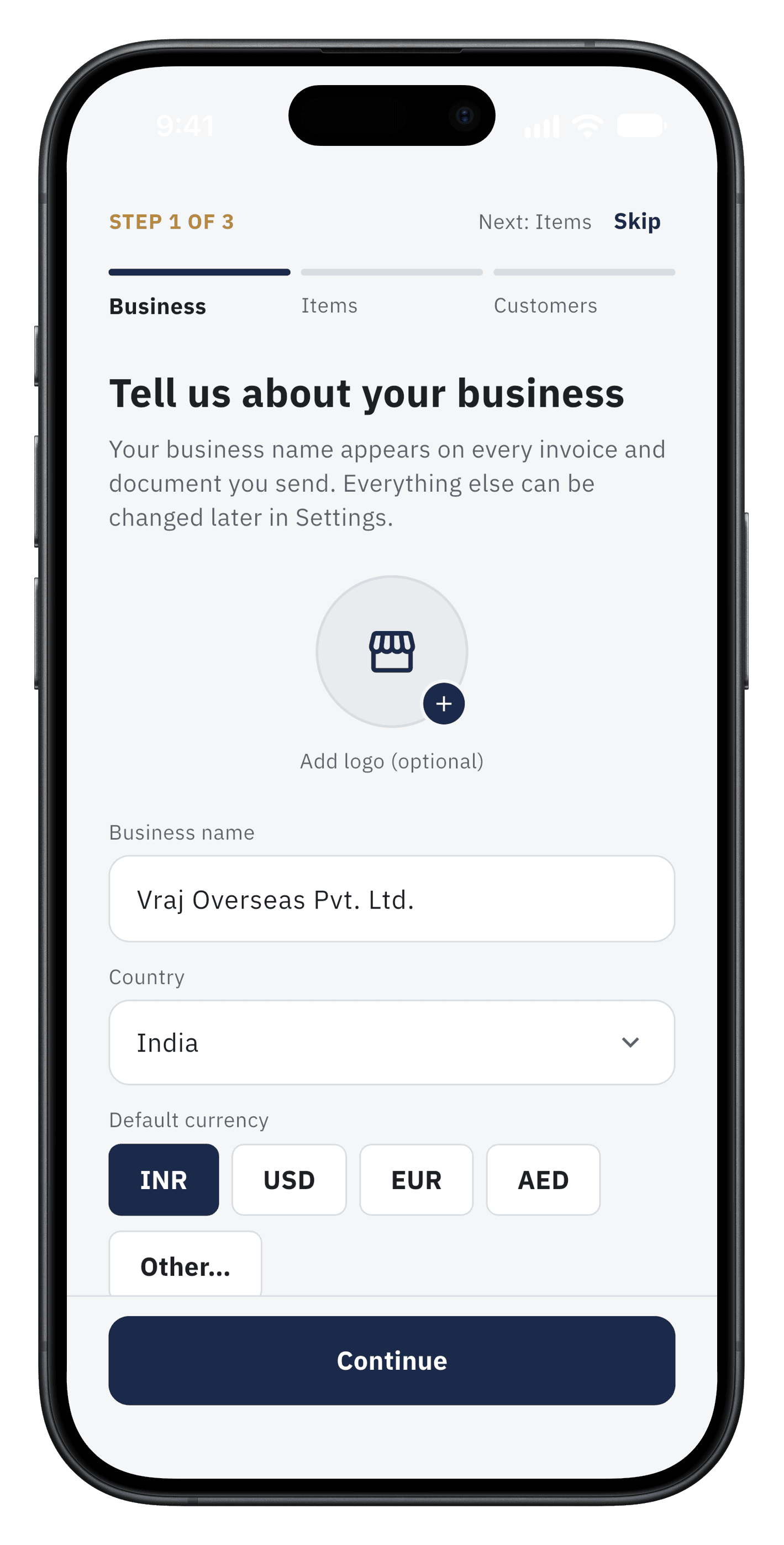
Add your business details — name, country and currency. You can change them later in Settings → Business Profile.
You land on Home: what buyers owe you and your recent documents. The tabs along the bottom are Home, Ledger, Stock, Documents and Settings.
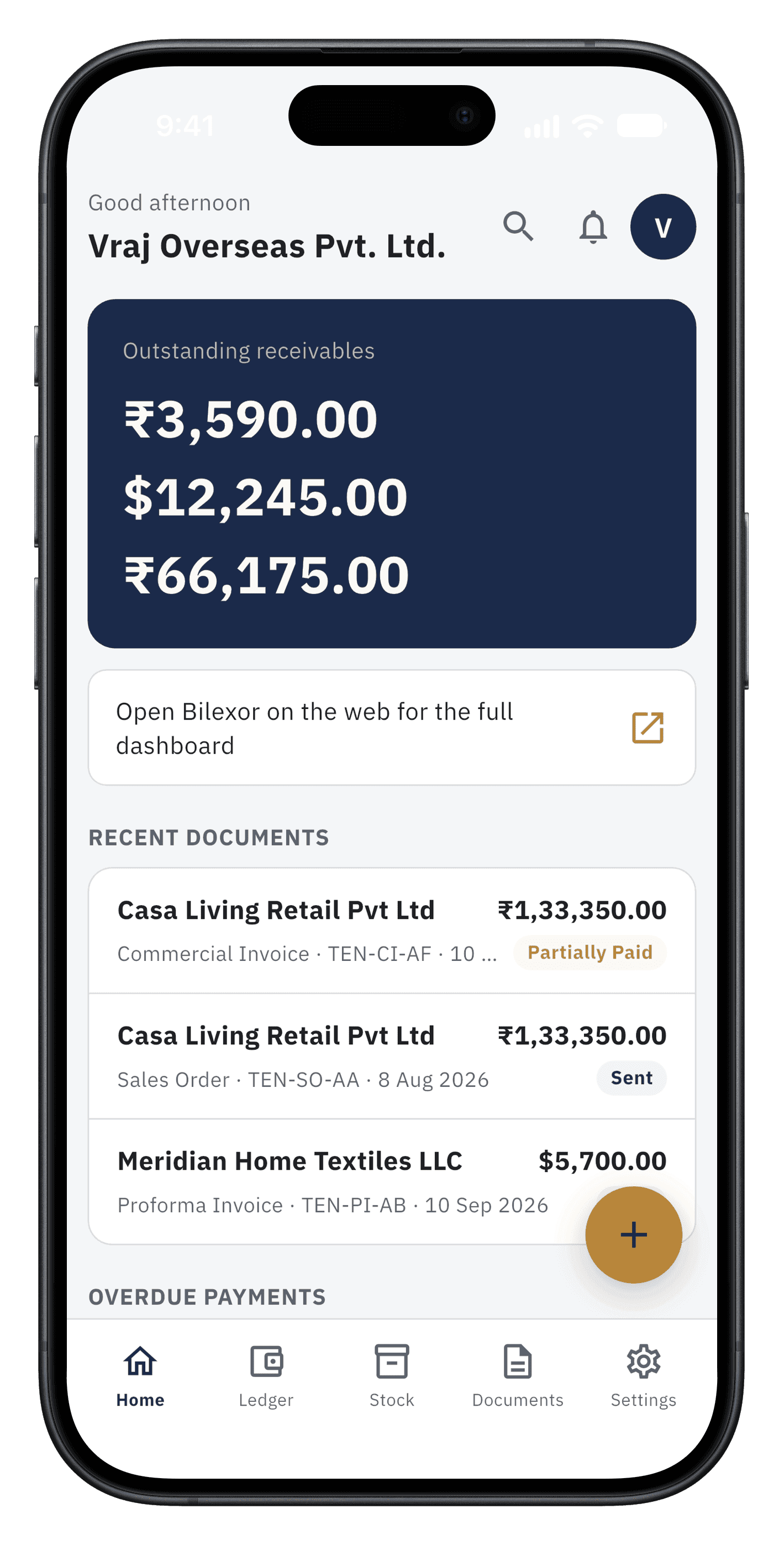
Tap + on Home or Documents to create your first document.
The web dashboard comes with every paid plan — Solo, Team and Enterprise. On the free plan, use the phone app.
Frequently asked questions
Is Bilexor free?
Yes, on one device: the free plan keeps your books on your phone, with 20 invoices a month, every other document unlimited, and the full ledger and stock tracking. Paid plans add unlimited invoices, cloud sync, the web dashboard and team access.
Can I use the same account on my phone and the web?
Yes, on any paid plan (Solo, Team or Enterprise). Both use the same cloud data, so a document you create on your phone is on the web straight away.