Documents
Create purchase orders and sales orders
AndroidiPhone & iPadWebFREE PLANUpdated 16 Nov 2026
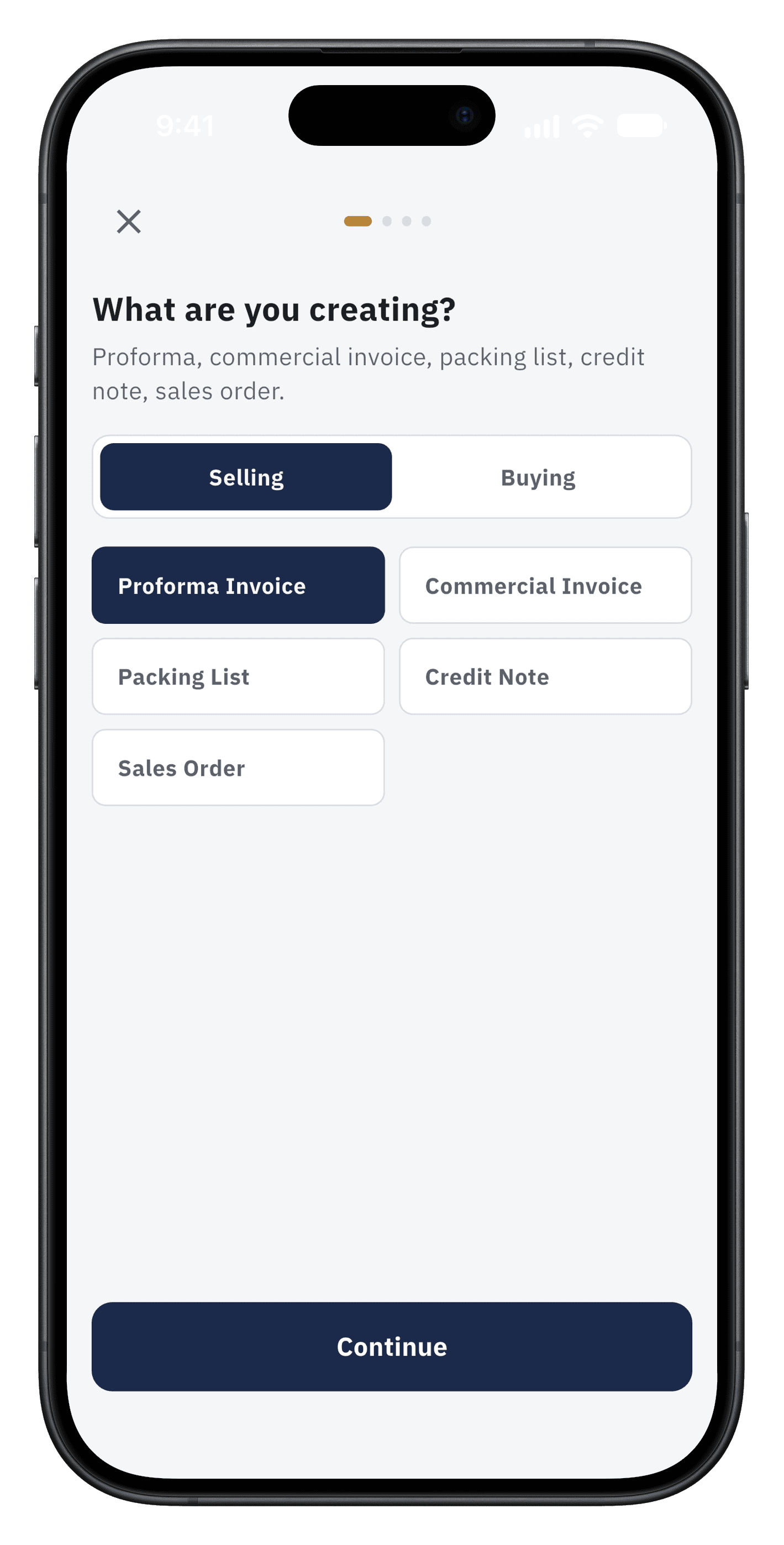
Tap +, pick a customer for a sales order or a supplier for a purchase order, and choose the order type. You can also start a purchase order from an item on the Stock tab. When purchased goods arrive, mark the purchase order received and the stock updates.
Step by step
Tap +. Pick a customer (selling) for a sales order, or a supplier (buying) for a purchase order.
Choose Sales Order or Purchase Order, add the lines and save.
From an item on Stock, Create purchase order starts one for that item.
When goods arrive, open the purchase order and tap Mark received.
Was this helpful?