Documents
Issue a credit note or debit note against an invoice
AndroidiPhone & iPadWebFREE PLANUpdated 16 Nov 2026
Tap + and pick the contact: a customer for a credit note, a supplier for a debit note. Choose the note type, and Bilexor asks which document it adjusts — search by document number — and, for returns, whether the goods went back into stock. Add the lines, then save and share the note.
Step by step
Tap + and pick the contact — a customer for a credit note, a supplier for a debit note.
At What are you creating?, choose Credit Note or Debit Note.
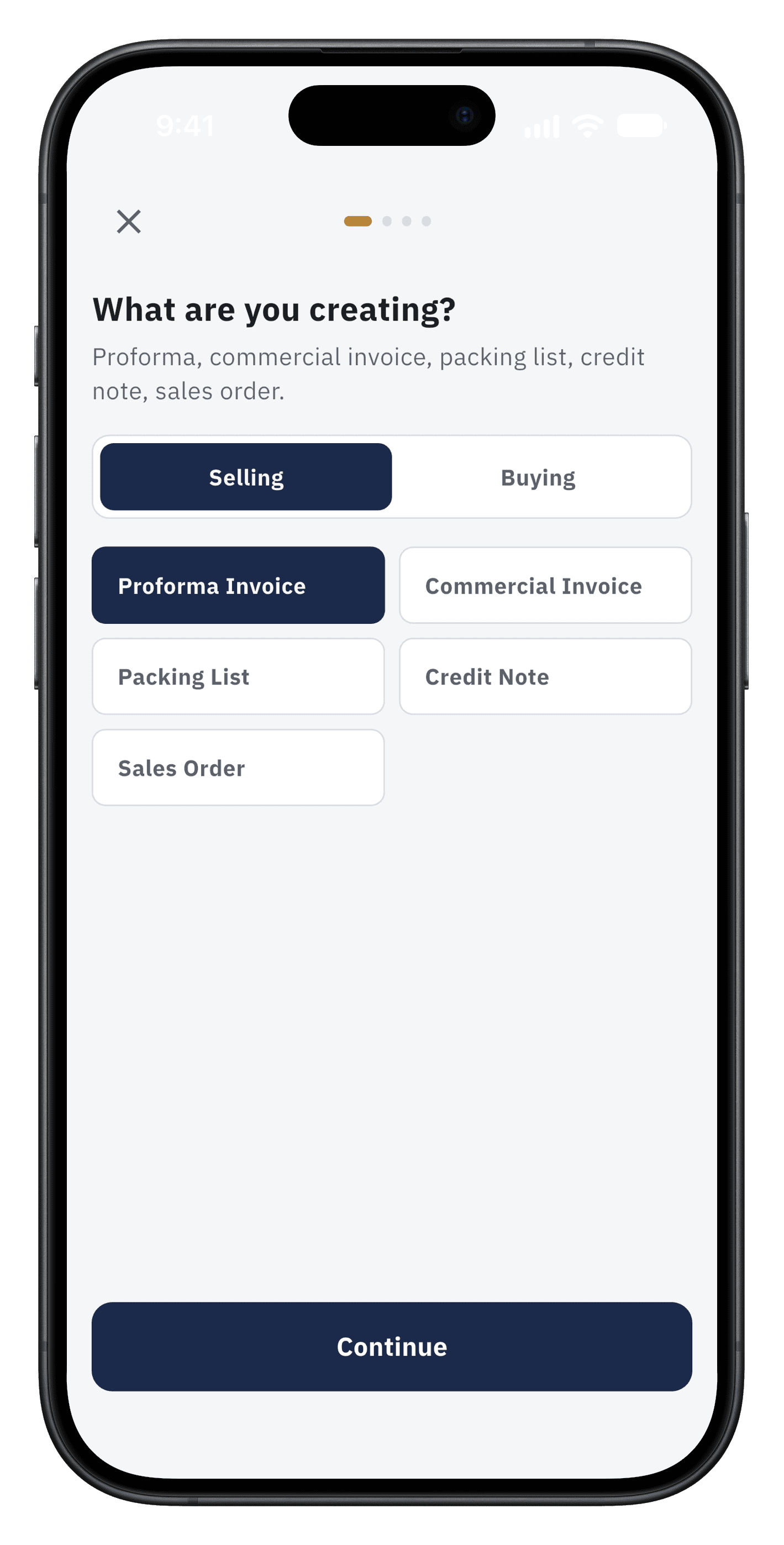
Under Which document does this adjust?, search by document number and pick the invoice.
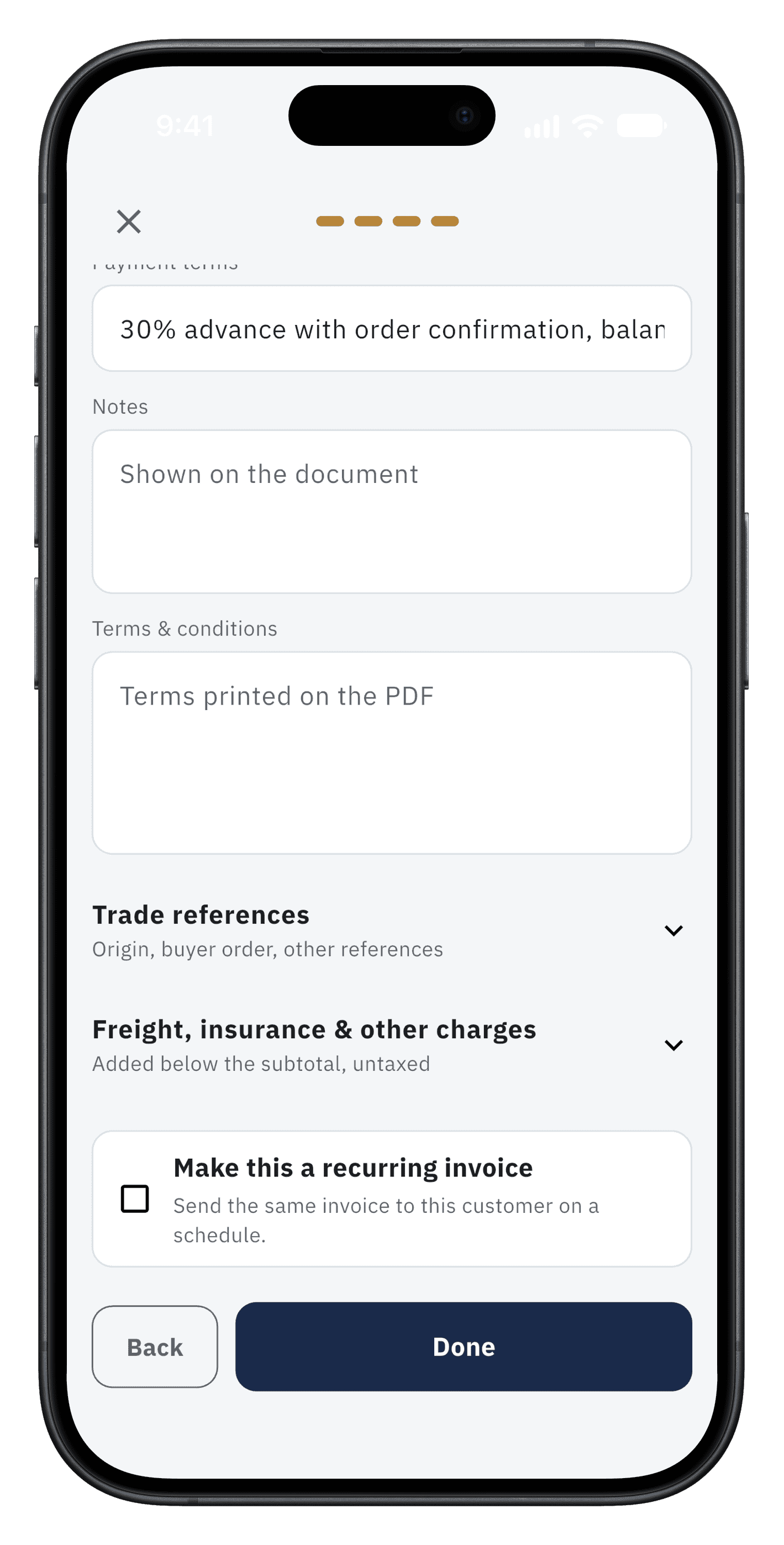
For returned goods, turn on Goods returned to stock. Add the lines, then tap Done.
Was this helpful?