One shipment's documents scattered across folders
The proforma is in email, the invoice in one folder, the packing list in another, and the shipment details are typed differently on each. When the bank or the forwarder asks for the set, you go looking.
Why it keeps happening
- Documents are organised by type or by date, not by the shipment they belong to.
- Shipment details — ports, Incoterm, marks, container — are re-entered on every document.
How Bilexor handles it
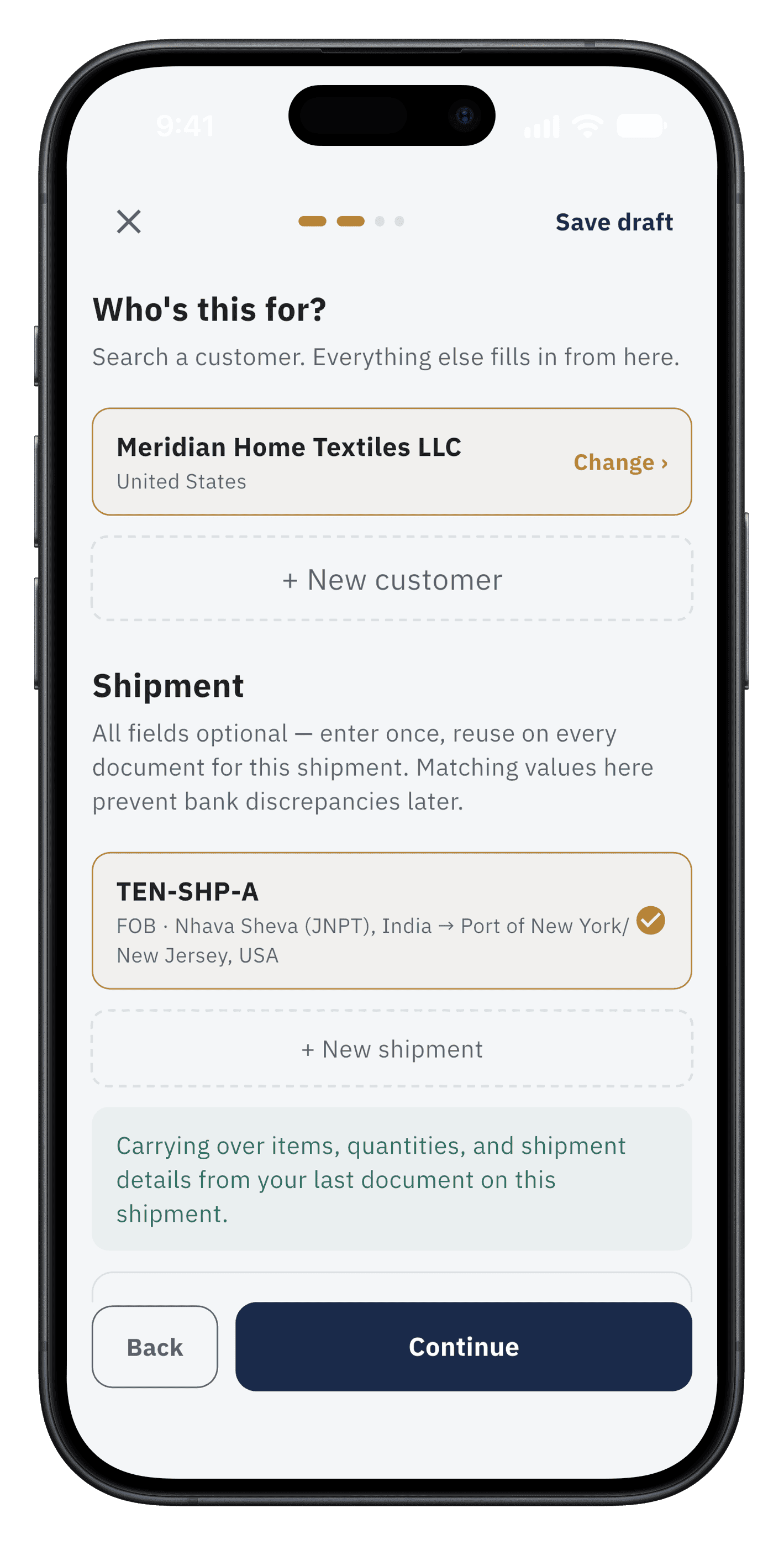
Enter shipment details once
When you create a document, the Shipment section takes the trade details once and reuses them on every document for that shipment.
Every document for a shipment, by stage
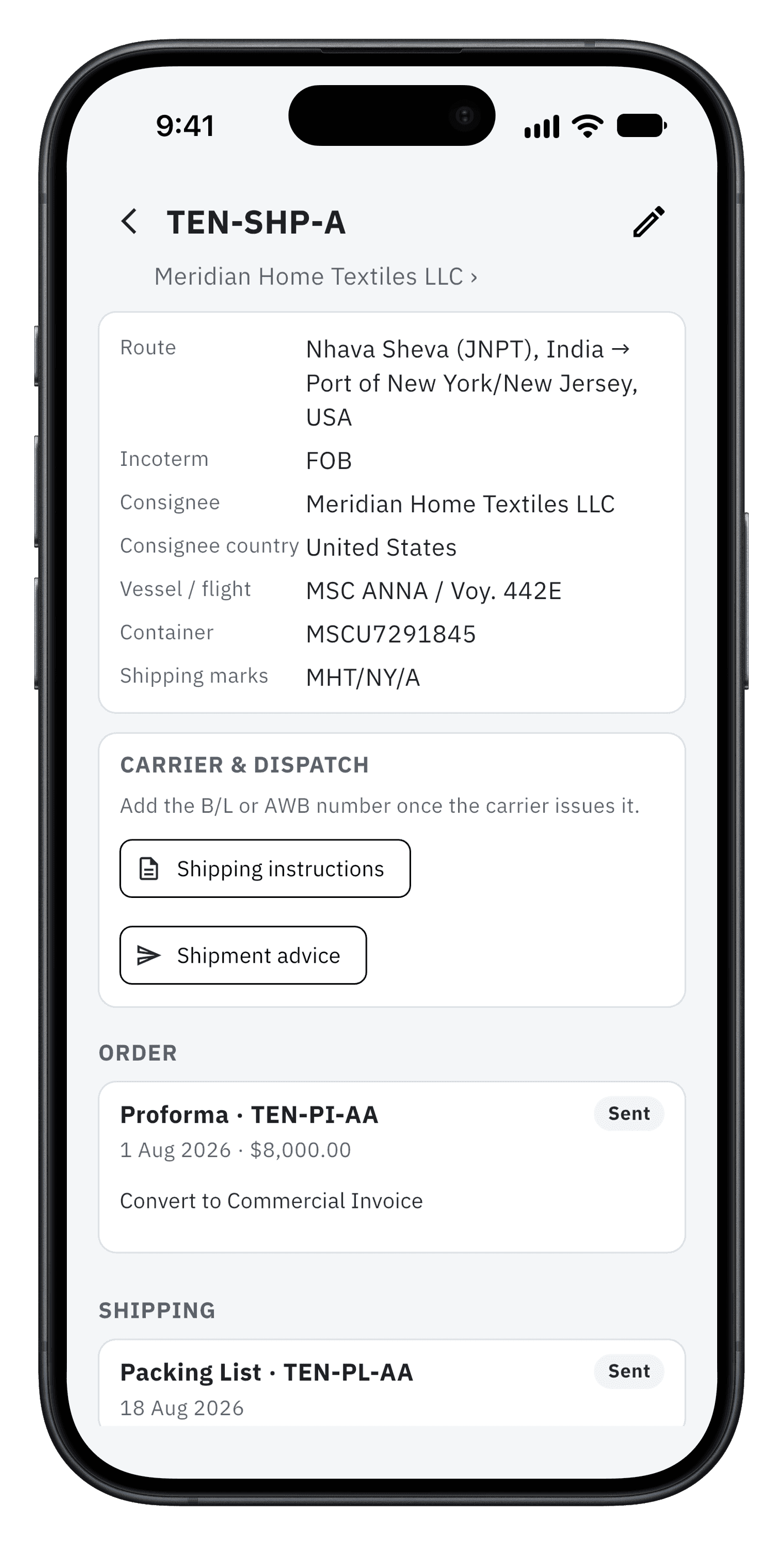
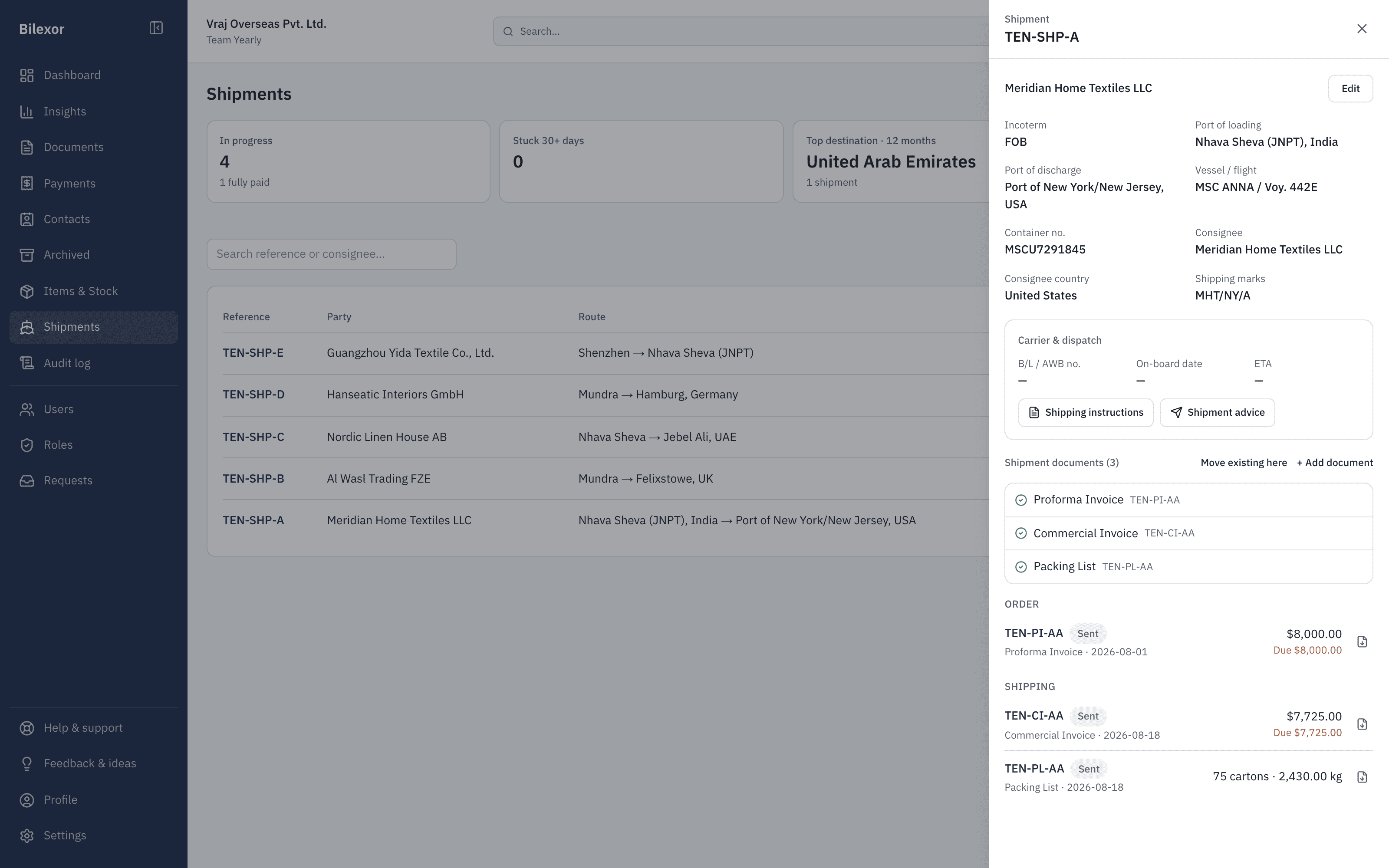
Open a shipment to see its documents grouped by stage. Create a missing one pre-filled, convert a proforma in one tap, or move in a document you made separately.
Checked as a set
Because the documents are grouped, Bilexor can compare them before you send — items, quantities, HS codes and marks.
Do it step by step
Each guide covers the phone app and, where it differs, the web dashboard.
Frequently asked questions
Do I have to fill in every shipment field?
No — they're all optional. Whatever you enter is reused on the shipment's documents.
Can I move a document into a shipment later?
Yes. Use Move to shipment on the document, or Move a document here on the shipment.