Shipments
Group a shipment's documents in one place
AndroidiPhone & iPadWebFREE PLANUpdated 16 Nov 2026
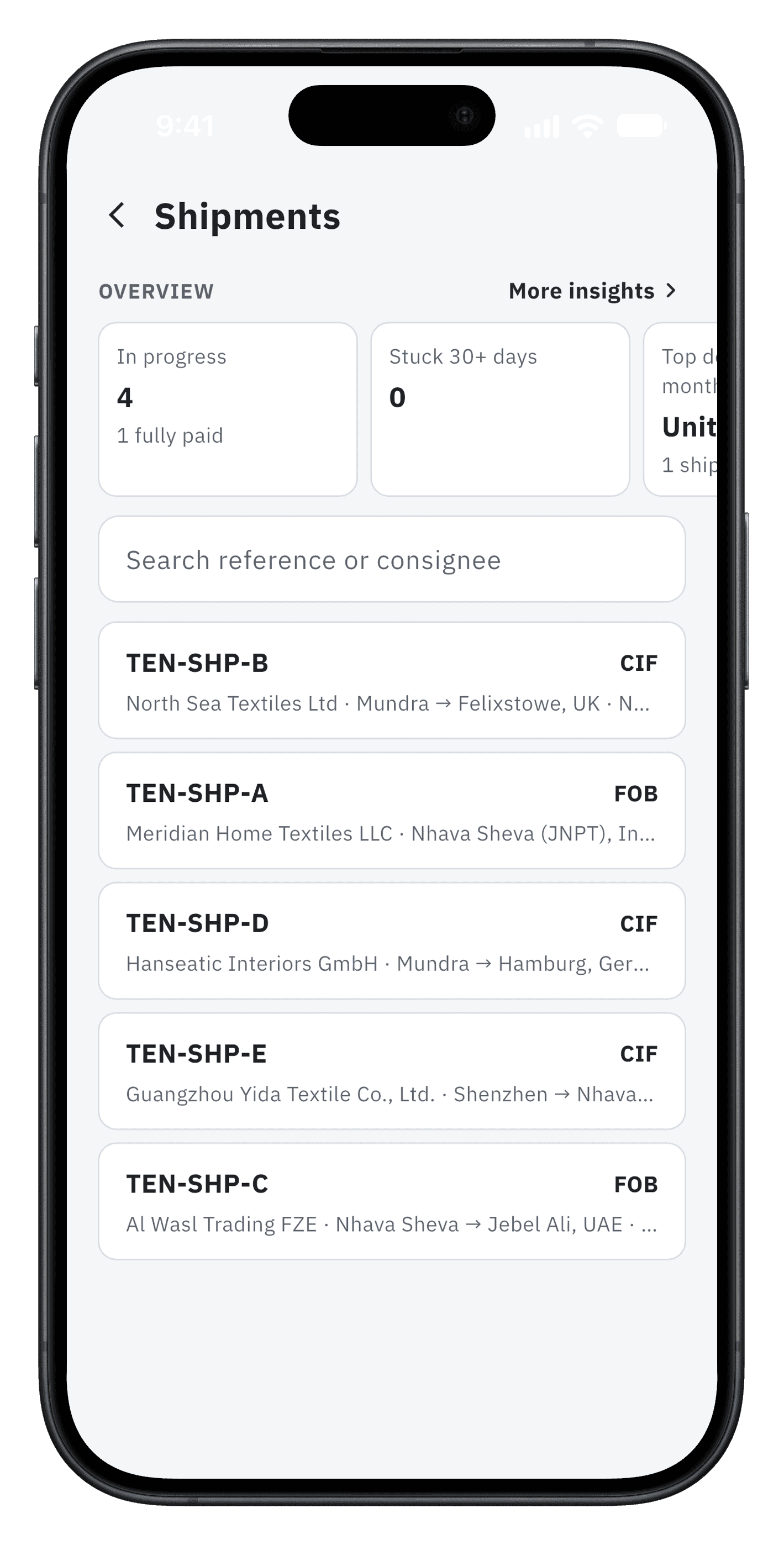
When you create a document, the first step has a Shipment section: pick the shipment it belongs to or start one, and enter the trade details once. Every later document for that shipment reuses them. Open Shipments from the top of the Documents tab to see each shipment with its documents.
Step by step
Tap + and pick the customer. Under Shipment, select a shipment or start a new one.
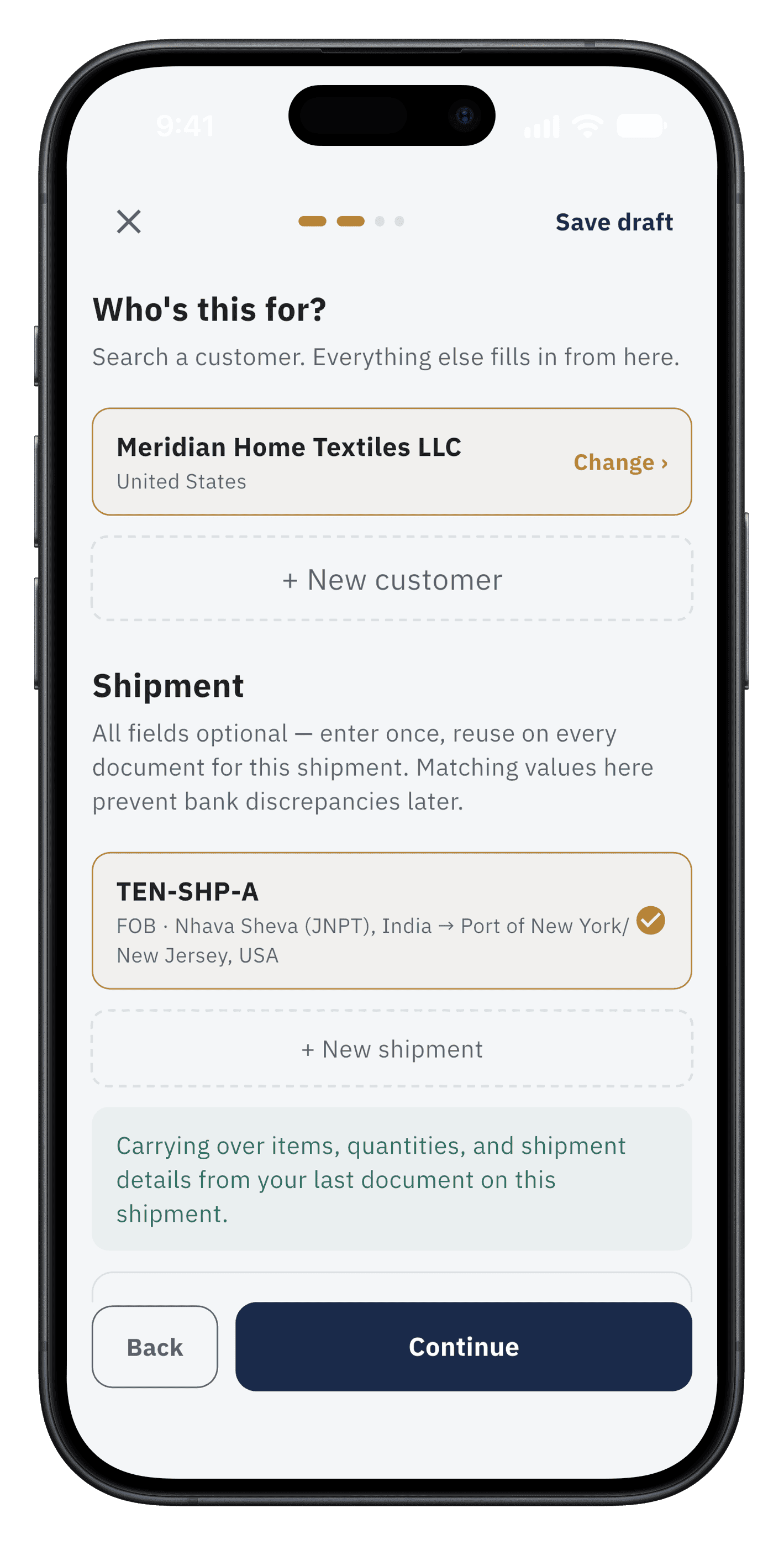
Fill in the shipment details — all optional, entered once and reused on every document for this shipment.
Open Documents and tap the shipments icon at the top to see every shipment.
Was this helpful?